How to set Default State for Tapo smart bulb
Недавние обновления могли расширить доступ к функциям, обсуждаемым в этом разделе часто задаваемых вопросов. Посетите страницу поддержки вашего продукта, выберите подходящую версию аппаратного обеспечения для вашего устройства и проверьте раздел «Техническое описание» или «Прошивка», чтобы узнать о последних улучшениях, добавленных в ваш продукт. Обратите внимание, что доступность продукта зависит от региона, и некоторые модели могут быть недоступны в вашем регионе.
Introduction
The default state of smart bulb is the state when it is turned on. You can use last “On” state or custom the state as needed. Also, you can choose what state you want the bulb to be in when the power cuts off and then returns.
Configuration
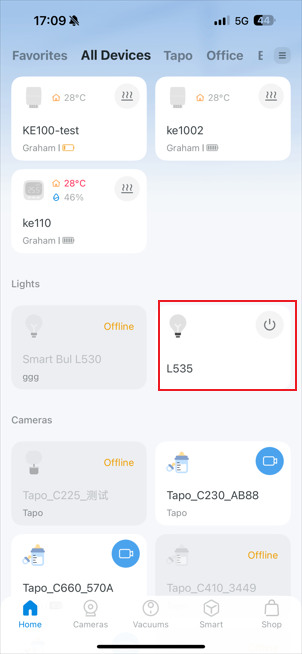
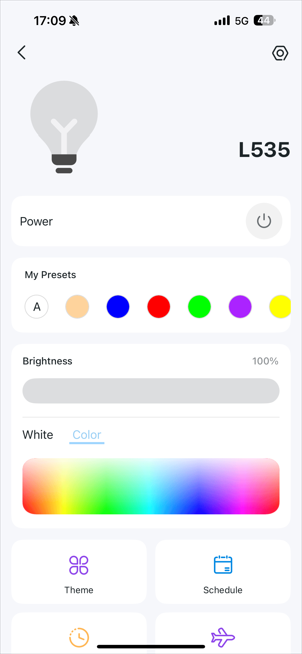
Step 1. On the home page, tap on your device card. Then tap the gear icon in the top right to open the Device Settings page.
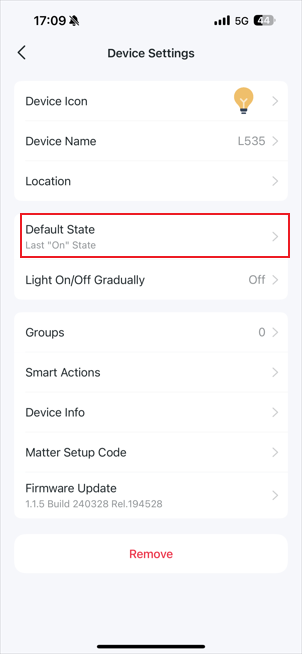
Step 2. On the Device Settings page, you can see the Default States option of this smart bulb. Select the default state, and your smart bulb will switch to that state when turned on.
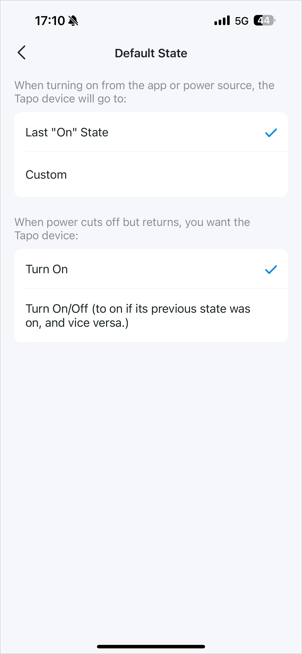
- Last “ON” States: It is the state when the bulb was last on.
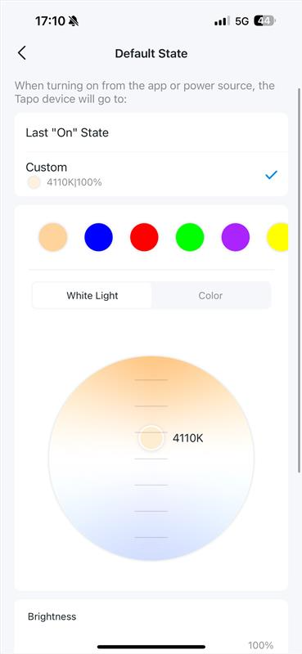
- Custom: Set the default brightness of the bulb when turned on.
- Turn On: When the power cuts off but returns, you want the Tapo device to turn on.
- Turn On/Off: When power cuts off but returns, you want the Tapo device to restore to its previous state.